















Quick Summary:
- CapCut remains one of the best free video editors on Android, with a toolset that rivals paid alternatives.
- The free tier gives you multi-track editing, keyframe animation, auto-captions, and a library of effects, templates, and royalty-free music.
- CapCut Pro costs $9.99/month and unlocks AI-powered tools, premium effects, and watermark removal for Pro-exclusive assets.
- For TikTok and short-form creators, CapCut is hard to beat. For longer, more precise projects, alternatives like KineMaster still have an edge.
- You can download the latest CapCut APK from APKPure if the app isn't available through your region's official channels.
The first thing you notice about CapCut is how much it gives you without asking for a credit card. Open the app, start a new project, and you're dropped into a timeline that handles multiple video tracks, audio layers, text overlays, stickers, and effects. No login required. No trial countdown. No locked features behind a "subscribe now" pop-up that blocks your screen every three taps.
That's increasingly rare in 2026, and it's a big part of why CapCut has become the default video editor for millions of people who post on TikTok, Instagram Reels, and YouTube Shorts. But free doesn't always mean good enough, and the growing list of Pro-exclusive features raises a real question: at what point does the free tier start feeling limited?
We tested CapCut on Android over two weeks, editing everything from 15-second Reels to 5-minute YouTube videos, pushing the app through multi-layer edits, chroma-key compositing, and speed-ramping. We also put it side by side with KineMaster, InShot, and VN Video Editor to see where it actually stands.
Pros and Cons
Pros
- Generous free tier that covers real-world editing workflows
- AI auto-captions work across 10+ languages with solid accuracy
- Template library makes one-tap edits genuinely useful
- Keyframe animation across almost every parameter
- Direct export to TikTok without extra setup
Cons
- Some of the best effects and transitions are locked behind Pro
- The template-first interface can feel cluttered for precise manual editing
- No frame-level zoom on the timeline (a real pain point for longer projects)
CapCut at a Glance: Who Made It and Who It's For
CapCut is built by Bytedance, the same company behind TikTok. That connection isn't coincidence. The two apps share DNA in their design philosophy: get someone from "I want to make something" to "I made something" in the fewest possible taps.
The app is available on Android, iOS, Windows, macOS, and through a web browser. A CapCut account syncs projects across devices. You don't need one to start editing. The Android version we tested weighs around 290MB and requires Android 5.0 or later.
CapCut is built for short-form creators first. If you're making TikToks, Reels, or Shorts multiple times a week, the workflow feels natural. If you're editing a 20-minute YouTube video with precise frame-by-frame cuts, you'll run into the app's limits faster than you'd like.
CapCut Free Tier: What You Actually Get
We tested intensive editing scenarios to map exactly where the free version stops.
The standout free features are all here: multi-layer timeline editing, keyframe-based animation, chroma key (green screen removal), video speed adjustment from 0.1x to 100x, auto-captions with translation, and a built-in music library with thousands of royalty-free tracks. You can export at 1080p without any CapCut watermark on the result (using free assets). 4K export is also available in the free tier, which surprised us.
The template library deserves special mention. You pick a template, swap in your clips, and the app automatically handles timing, transitions, and effects. The results are genuinely polished. For someone who wants to post a trending video format without learning editing, this alone makes CapCut worth installing.
The background removal tool works remarkably well, cleanly separating subjects from backgrounds even in imperfect lighting. Auto-captions generate usable subtitles in about 10 languages. The accuracy isn't perfect (fast speech and overlapping dialogue trip it up), but it's good enough that manual correction takes a minute or two, not ten.
Here's the catch: some of the most eye-catching effects, transitions, and text styles have a small Pro badge on them. Use them, and your export gets a CapCut watermark. The library of free content is large enough that you can still make impressive videos, but every update seems to add more Pro-gated assets.
CapCut Pro at $9.99/Month: What You're Actually Buying
CapCut Pro is $9.99/month (roughly $60/year). That subscription unlocks:
- Full access to all Pro effects, transitions, filters, and text styles (no watermark on Pro assets)
- AI-powered tools: video upscaling, noise reduction, AI color correction, smart object removal
- Access to 10+ million premium templates
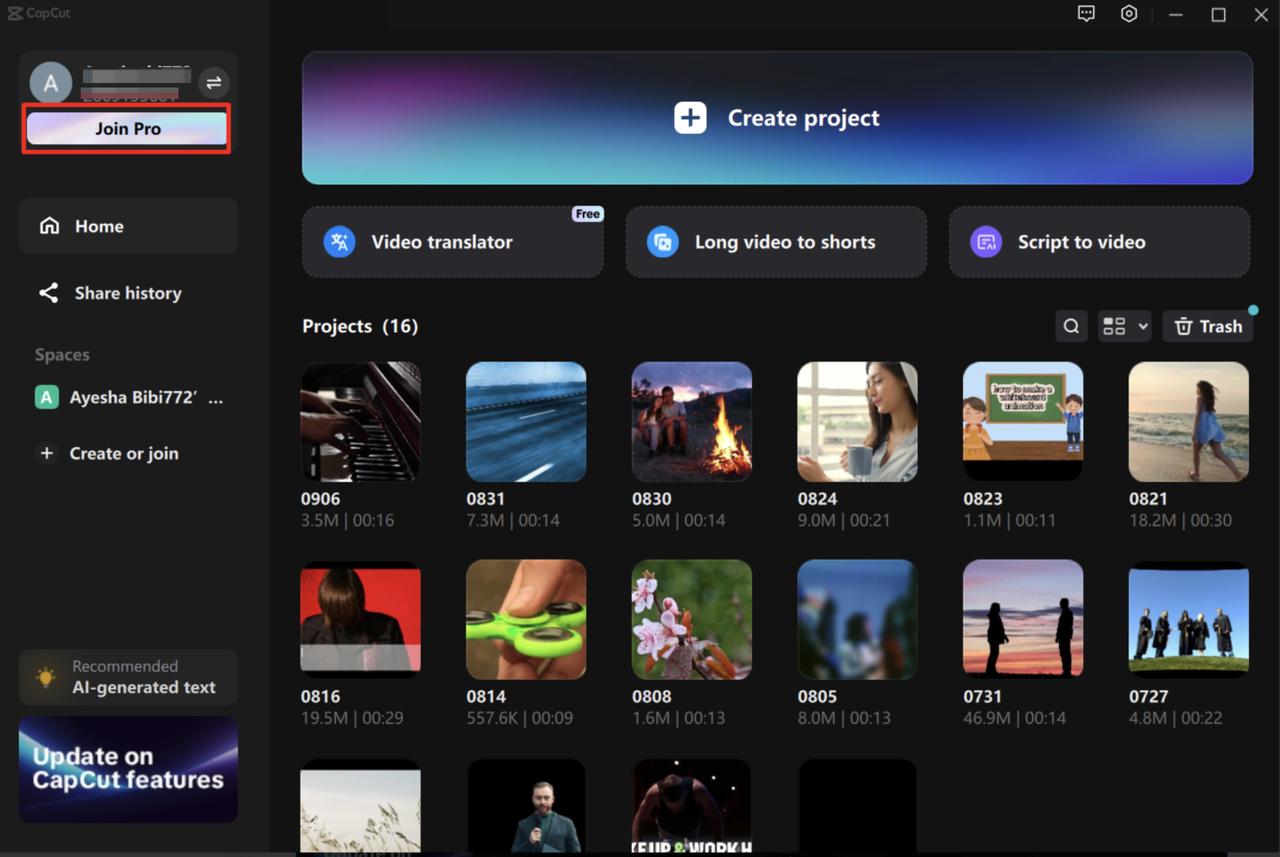
We tested the AI upscaler on a 720p clip upsampled to 1080p. The result was noticeably sharper than simple scaling, with edges smoothed in a way that didn't look artificial. AI noise reduction cleaned up heavy grain from a low-light shot without turning faces waxy. These tools work, but they're more useful for creators who shoot on phones in variable conditions rather than those working with clean, well-lit footage.
A practical comparison: for a casual creator posting a few videos per week, the free tier is more than enough. For someone editing daily and consistently hitting effects and transitions that happen to be Pro-gated, the subscription pays for itself in time saved and creative options unlocked.
Big difference: CapCut Pro costs about half what Adobe Premiere Rush charges and roughly the same as KineMaster Premium. The value depends entirely on how much of CapCut's Pro-exclusive library you actually use.
CapCut Features: What Impresses and What Frustrates
AI Auto-Captions and Text Tools
CapCut's auto-captioning is its most practical feature. Import a talking-head video, tap "Auto captions," and within seconds the app generates timed subtitles. We tested it with English, Spanish, and a bilingual clip mixing both. English accuracy was strong (maybe 85-90%). Spanish dropped slightly but remained usable. The bilingual clip confused the detection engine; it defaulted to whichever language dominated and ignored the rest.
Once captions are generated, you can batch-edit the text style, font, color, and animations as a group. CapCut even provides caption templates that animate words as they're spoken, which is the kind of detail that makes short-form videos feel professional without extra work.
Not ideal: the app doesn't let you export a standalone SRT file. If you need captions for use outside CapCut, you'll need a separate workflow.
Keyframe Animation
CapCut exposes keyframe control across nearly every property: position, scale, rotation, opacity, and volume. You place keyframes on the timeline and the app interpolates motion between them. We used this to animate text sliding across the screen with a bounce effect and to simulate a Ken Burns-style pan across a still photo. Both were straightforward.
The keyframe interface on mobile is functional but cramped. On a 6-inch phone screen, dragging tiny keyframe nodes on the timeline gets fiddly fast. This is one area where a tablet or desktop alternative is genuinely better.
Chroma Key (Green Screen)
The chroma key tool lets you select a color range with a color picker, adjust intensity and shadow, and clean up edges. We shot a clip against a green bedsheet in mediocre lighting and CapCut handled it better than expected. There was some fringing around hair, but the edge refinement slider cleaned up most of it. For quick green screen work, it's solid. For studio-grade compositing, you'd want a dedicated tool, but CapCut isn't trying to be that.
Speed Controls
CapCut goes from 0.1x extreme slow-motion to 100x fast-forward. The curve tool lets you create speed ramps where a clip smoothly accelerates or decelerates. We used this on a walking shot: normal speed into slow-motion as the subject turns, then back to normal speed. The result was smooth, with no stutter at 0.5x on a 60fps source clip.
Speed-based audio pitch correction is on by default. Turn it off if you want the classic chipmunk effect on fast-forward clips.
Templates: The Shortcut and the Trap
Templates are CapCut's most unique feature. Browse popular formats from the discover tab, tap one, replace the placeholder clips with your own, and export. The app handles transitions, effects, text overlays, and music sync automatically.
The downside is that template reliance can become a crutch. We've seen feeds fill up with videos that all use the same three trending templates, and the result is visual sameness. Templates are best used as starting points that you customize further, not as the final product with zero changes. Fair enough, the tool gives you options; how you use them is up to you.
How To
CapCut Tips and Tricks: 12 Things Every Beginner Should KnowNew to CapCut? Learn 12 practical video editing tips for Android, from auto-captions and beat sync to keyframe animations and export settings.
Ucz się więcejCapCut vs KineMaster vs InShot vs VN Video Editor
We ran the same 90-second edit through all four apps to compare workflows.
- CapCut vs KineMaster: KineMaster offers more precise timeline control, including frame-level zoom and scrub. Its export options are more granular (custom bitrate, multiple codecs). CapCut wins on ease of use, template variety, and AI-powered tools. If you're doing precise, longer-form edits, KineMaster is the better pick. If you're making social media content that needs to go up fast, CapCut is faster.
- CapCut vs InShot: InShot is simpler, with a focus on quick trims, music addition, and basic filters. It's closer to a photo-editing workflow applied to video. CapCut is significantly more powerful for anything beyond basic trims and music overlays. InShot's free tier also adds a watermark, while CapCut's free exports are clean.
- CapCut vs VN Video Editor: VN is the closest free competitor to CapCut in terms of features. It offers multi-track editing, keyframes, speed curves, and a clean interface with almost no Pro-gating. VN's timeline controls are slightly more precise than CapCut's. CapCut's advantage is the template library, AI tools, and smoother music integration. VN's advantage is a more professional-feeling timeline and fewer locked features.
Real-World Experience: What Two Weeks of Editing Looked Like
We used CapCut on a mid-range Android phone (Snapdragon 7 series, 8GB RAM) for over two weeks. The app handled 1080p 60fps clips without lag during editing. Rendering times were reasonable: a 90-second video with four tracks, color grading, and text overlays exported to 1080p in roughly 40 seconds.
The timeline got cramped on longer projects. After about 3 minutes of total timeline content, pinch-zooming to find specific clips became tedious. There's no marker system, no label colors for clips, and no way to group tracks. For short-form videos, these limitations barely matter. For anything longer, they start to grate.
Battery drain was modest: about 12% per hour of active editing. The app didn't overheat the phone during exports, which hasn't always been the case with earlier versions.
One pleasant surprise: CapCut remembers your export settings between projects. If you always export at 1080p 60fps, it defaults to that next time. Small quality-of-life touches like this add up over repeated use.
Annoyance we kept hitting: the app prompts you to log in at various points (saving drafts to cloud, accessing template details). It's dismissible every time, but the frequency feels pushy. Bytedance clearly wants you in their account system.
Who Should Use CapCut (and Who Shouldn't)
- Get CapCut if you make TikToks, Reels, or Shorts regularly and want polished results without learning a complex editor. It's also great if you're new to video editing and want to learn on a tool that doesn't punish mistakes.
- Skip CapCut (and try KineMaster or VN) if you're editing videos longer than 5 minutes with precise frame-level cuts, or if you need advanced audio mixing, scopes, and LUT support. CapCut can do longer videos, but the experience feels increasingly cramped past a certain point.
- For casual editors who post occasionally, stick with the free tier. For daily creators hitting Pro-gated effects and templates frequently, the $9.99/month subscription is worth it.
- Jak pobrać najnowszą wersję Pokémon GO APK 0.319.0 na Androida 2024
- Jak pobrać najnowszą wersję Chapters APK 6.5.7 na Androida 2024
- Jak pobrać najnowszą wersję FaceApp APK 11.10.2.2 na Androida 2024
If CapCut isn't available through your device's usual app channels, you can download CapCut APK latest version from APKPure. Just search for CapCut, download the file, and install it directly.
FAQ
Q: Is CapCut free?
Yes. The core editing tools, auto-captions, keyframe animation, chroma key, speed controls, and music library are all free with no watermark on your exports (using free assets).
Q: What's the difference between CapCut free and CapCut Pro?
CapCut Pro ($9.99/month) unlocks all premium effects, transitions, filters, and templates. It also adds AI tools like video upscaling, noise reduction, and AI color correction. Free exports using Pro-gated assets get a watermark.
Q: Is CapCut safe to download?
Yes. CapCut is developed by Bytedance, a major technology company. The version verified on APKPure passes standard security checks and is the same app distributed through official app channels.
Q: Does CapCut work offline?
Most of CapCut works offline during editing. You need internet to download templates, browse the music library, and access cloud-synced projects. Exporting and basic editing don't require a connection.
Q: Can CapCut export 4K video?
Yes. 4K export at 60fps is available in the free tier. Higher resolutions and frame rates may be restricted by your device hardware rather than the app itself.
Q: Is CapCut better than KineMaster?
For short-form social media content, yes. CapCut's template library, AI tools, and TikTok integration give it an edge. For longer, more precise edits, KineMaster's superior timeline controls and granular export options make it the better choice.
Final Verdict
CapCut earns its spot as the best free video editor on Android by a comfortable margin. It does more out of the box than competitors that charge monthly fees, and the TikTok integration is genuinely useful rather than a gimmick.
The Pro subscription at $9.99/month adds real value for creators who edit daily and lean on effects, but the free tier is generous enough that most casual users won't feel squeezed. The biggest limitation is the timeline interface, which is optimized for short content and becomes a constraint on longer projects.
If you edit videos for social media, CapCut is the first app you should install. It's fast, it's powerful, and it doesn't hold your best work hostage behind a paywall.