Package Name:com.easycast.recorder
Show More

Mirror your phone screen to your PC and record it, all on your own network.
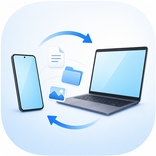
EasyCast Recorder shows your phone screen on your Windows PC and records it. Your phone captures and sends the picture; the PC watches and records. Nobody controls your phone from the PC.
You pair the two apps once, with a code on the screen. There is no account to create and nothing to sign in to.
How it works
1. Install the EasyCast Recorder app on your Windows PC and open it. It shows a pairing code.
2. Open this app on your phone and scan that code.
3. Tap "Mirror screen" and accept the confirmation Android shows you. Your screen appears on the PC.
What you can do
- Watch your phone screen live on your PC, with the sound your phone is playing.
- Record your phone screen to a video file on your PC.
- Record the PC screen too, so a tutorial that mixes phone and computer comes out already put together in one video.
- Choose one video of the session, or that one plus a separate video of the phone screen on its own.
- Pick the quality: 720p or 1080p. Options your screen cannot reach are greyed out.
- Set a countdown before the recording starts, so you have time to arrange your windows.
- Turn your phone and the picture turns with it. There is nothing to set.
- Draw on the PC screen while it records, to point things out: colours, thickness, an eraser, keyboard shortcuts, and a small floating bar that stays out of the video.
- Read the user manual built into both apps whenever you get stuck.
- Use the apps in English, Spanish, Portuguese, Chinese, Hindi, Russian, French or German, and switch whenever you want.
Wi-Fi or USB cable
The two apps normally talk over the Wi-Fi you already have. If there is no Wi-Fi, plug the phone into the PC, turn on USB connection sharing in the Android settings, and scan the same code. You never have to choose between the two: the code carries every address of your PC, and your phone tries them one by one until one answers.
Your content stays yours
The picture and the sound of your screen travel from your phone to your PC across the network the two devices share. They do not pass through us. We do not run a server that could receive them, and there is nothing for us to look at. Your recordings are written to a folder on your PC and stay there until you move or delete them.
The camera permission is used for one thing only: reading the pairing code. The image is read on your phone while you point at the code, it is not stored, and it is not sent anywhere.
The app does not use your microphone. What you hear on the PC is the sound your phone is already playing, captured under the same screen-capture confirmation that Android shows you every time you start.
Android asks for that confirmation each time mirroring starts, and shows a notification while it is running. Mirroring never starts on its own, and it can never be started from the PC.
What you need
- Android 12 or newer.
- A Windows PC with the EasyCast Recorder app for PC installed.
- Both devices on the same network, or joined with a USB cable.
Good to know
- The PC app is a separate download, and both apps are needed. On its own, this app has nothing to connect to.
- Mirroring always starts on the phone, because Android only lets the app you have in front of you ask for screen capture.
- This app shows ads. An optional subscription removes them and lets you show a photo of your own in that space instead.
- Recordings are saved on the PC, not on your phone.
Support
Questions, problems or ideas: [email protected]



One-click to install XAPK/APK files on Android!

Thanks for your rating and feedback!
You have already rated.